
Run Warp Oz agents from the editor you already use
OzBridge exposes the Warp™ Oz™ agent toolset over the Model Context Protocol, so GitHub Copilot Chat, Claude Code, Cursor and Codex CLI can launch, poll and read Oz runs — locally in your workspace or in the Warp cloud — without leaving the tool you work in.
What is OzBridge?
Warp Oz orchestrates autonomous coding agents in the cloud, and it is driven from the Warp terminal.
OzBridge puts the same agent toolset behind a standard MCP surface, so the editor or agent you already
use can start a run, watch it to completion and read its output in place. Inside VS Code it goes further:
Oz appears as the @oz chat participant and as Language Model Tools that Copilot Agent mode
invokes on its own initiative.
One bridge, every client
OzBridge speaks MCP over HTTP + SSE on one side and spawns the oz CLI on the other.
Every client sees the identical tool set, so a workflow written for Copilot behaves the same in Claude Code.
Start the bridge
Flip ozBridge.mcpEnabled on in VS Code, or run the standalone server with a single
npx command. No editor required for the standalone path.
Point your client at it
One JSON or TOML block per client. The endpoint is http://127.0.0.1:3847/sse by default,
with an optional bearer token.
Drive Oz from anywhere
Your agent calls the tools directly — run, poll, inspect, switch model — and gets structured output back in its own context.
What you get
MCP bridge for any client
The Oz toolset as a standard MCP server over HTTP + SSE — embedded in VS Code or fully standalone
via @sena-labs/oz-mcp-server.
@oz chat participant
Nine slash commands covering the whole workflow: /run, /cloud,
/status, /history, /schedule, /models,
/mcp, /config, /init.
Agent-native LM Tools
Copilot Agent mode invokes Warp Oz autonomously, with strict JSON input schemas and a confirmation dialog before any run that spends credits.
Sidebar and status bar
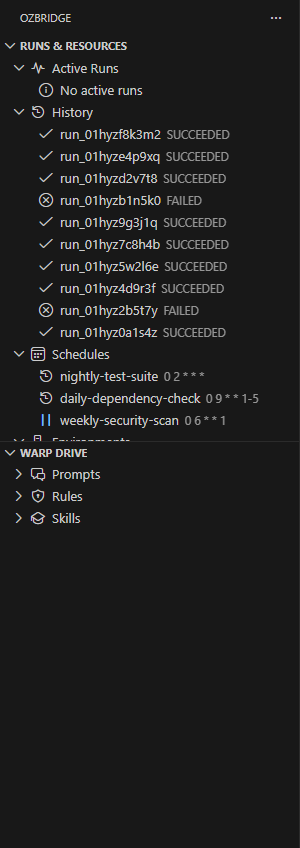
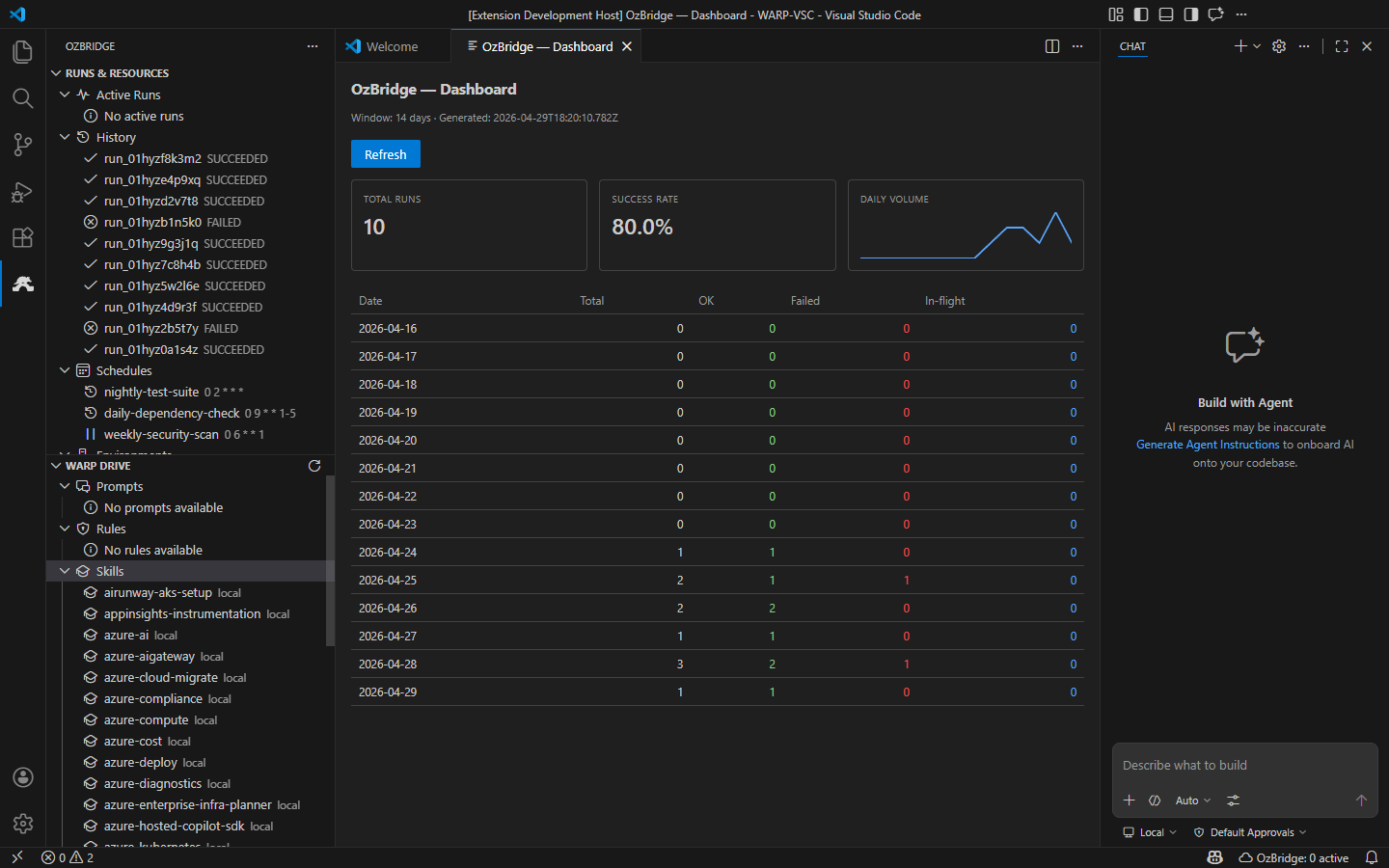
Active runs, history, schedules, environments, MCP servers and secrets in one Activity Bar view, plus live indicators for active runs and the selected model.
One-click model selection
Pick the Oz model from a QuickPick, the status bar, or @oz /models <id>. Agents switch
it themselves through oz_list_models and oz_set_default_model.
IDE context injection
Workspace path, active file, selection and diagnostics are prefixed to every prompt automatically —
opt out per call with includeIdeContext: false.
Warp Drive browser
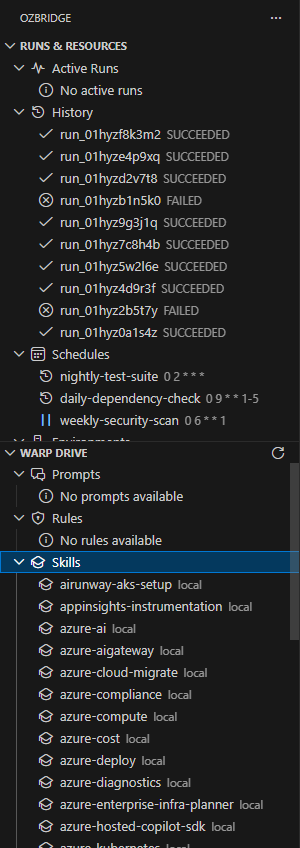
Browse prompts, rules and skills from Warp Drive, then insert them into chat, copy them, or open them in the editor.
Per-workspace config
Commit .warp/warp-bridge.yaml and the whole team inherits the same defaults. Secrets and
platform-specific paths are deliberately excluded.
Resilient polling
Exponential-backoff cloud polling with live progress, an idle-timeout guard on the CLI subprocess and a five-level JSON parser for mixed CLI output.
Six MCP tools
Every MCP client sees this exact set, with the full JSON inputSchema emitted verbatim by
tools/list. In VS Code, Copilot Agent mode additionally sees the native Language Model Tools
oz_run_local, oz_run_cloud, oz_get_run and oz_list_runs.
| Tool | Purpose | Cost |
|---|---|---|
oz_agent_run | Run an Oz agent locally with a prompt and return the full run payload. | Free |
oz_agent_run_cloud | Launch a cloud run on Warp's infrastructure. | Warp credits |
oz_run_get | Fetch a run's status and output by id. Read-only. | Free |
oz_run_list | List recent runs, filtered by all, active, completed or a raw status, with a numeric limit. | Free |
oz_list_models | List the model ids available to the account and report the current default. Read-only. | Free |
oz_set_default_model | Set the default Oz model by writing defaultModel into the workspace config. | Free |
Connect your MCP client
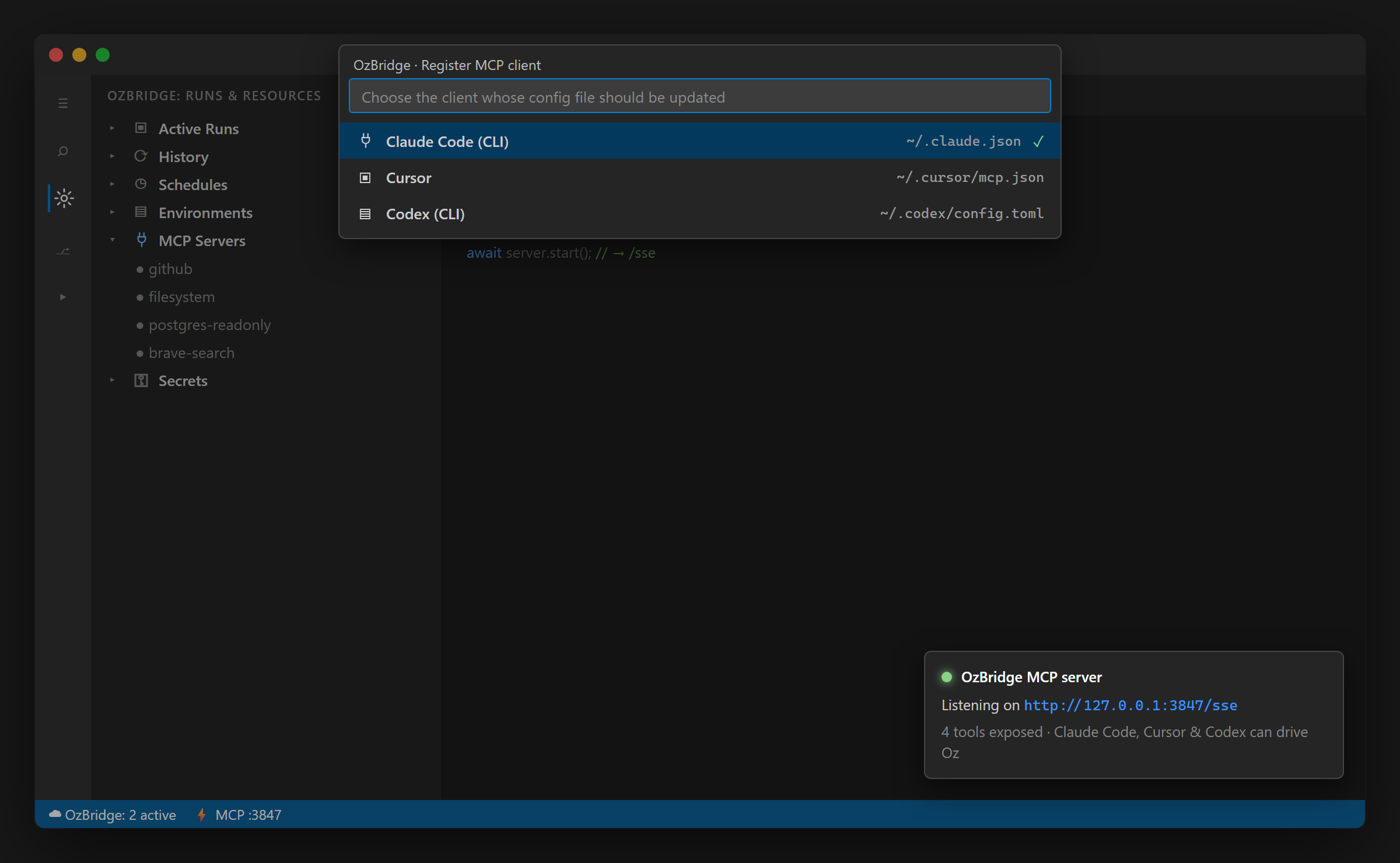
Start the bridge first — either enable the embedded server in VS Code
("ozBridge.mcpEnabled": true, then OzBridge MCP: Start) or run the standalone package:
npx -y @sena-labs/oz-mcp-server
Both listen on http://127.0.0.1:3847/sse. Set ozBridge.mcpBearerToken to require an
Authorization: Bearer <token> header on every request; drop the headers block below
when authentication is disabled.
How do I use Warp Oz in Claude Code?
~/.claude.json{
"mcpServers": {
"oz-bridge": {
"type": "sse",
"url": "http://127.0.0.1:3847/sse",
"headers": {
"Authorization": "Bearer my-secret"
}
}
}
}How do I use Warp Oz in Cursor?
~/.cursor/mcp.json{
"mcpServers": {
"oz-bridge": {
"url": "http://127.0.0.1:3847/sse",
"headers": {
"Authorization": "Bearer my-secret"
}
}
}
}How do I use Warp Oz in Codex CLI?
~/.codex/config.toml[[mcp.servers]]
name = "oz-bridge"
url = "http://127.0.0.1:3847/sse"
authorization = "Bearer my-secret"How do I use Warp Oz in VS Code?
no MCP wiring needed# Install the extension …
code --install-extension sena-labs.ozbridge
# … then, in the Copilot Chat panel:
@oz /run fix the failing test in src/auth/login.ts
Endpoint reference, protocol details and a raw-curl cheatsheet are in the
MCP reference.
Local runs and cloud runs
Both modes are reachable from every client. The difference is where the agent executes and who pays for it.
| Local run | Cloud run | |
|---|---|---|
| Executes on | Your machine, via the oz CLI | Warp's infrastructure |
| Warp credits | None | Consumed per run |
| Workspace access | Full — reads and edits your files | The configured cloud environment |
| Detached | No — tied to the CLI process | Yes — survives closing the editor |
| Default timeout | 5 minutes (timeoutMs), 90 s idle guard | 30 minutes of polling (cloudPollingTimeoutMs) |
| Confirmation | Runs immediately | Always confirms before spending credits |
Built to stay on your machine
The MCP tool surface can spawn a CLI that edits your code, so the defaults are deliberately conservative.
Loopback by default
The server binds to 127.0.0.1. The standalone server refuses to bind to a non-loopback
address unless a bearer token is configured.
Constant-time auth
When a bearer token is set, every request is checked with crypto.timingSafeEqual;
mismatches get 401.
Session limits
Concurrent SSE sessions are capped — extra connections get 503 — and each session has a
maximum lifetime so abandoned clients cannot leak resources.
Kill switch
ozBridge.killSwitch.enabled makes activation register nothing at all — an operator escape
hatch for a regression or a supply-chain incident.
Minimal footprint
One bundled workspace package plus the VS Code API. No third-party network code, and telemetry stays off unless you supply a connection string.
Untrusted workspaces
In a restricted workspace the committed .warp/warp-bridge.yaml is ignored and only
user-level configuration is honoured.
What it looks like
Install
VS Code · Cursor
Microsoft Marketplace.
code --install-extension sena-labs.ozbridgeVSCodium · Gitpod · Theia
Open VSX registry.
codium --install-extension sena-labs.ozbridgeNo editor
Standalone MCP server.
npx -y @sena-labs/oz-mcp-server
Requirements: Warp installed with the oz CLI on
PATH, a Warp account (a free account is enough for local runs), and — for the VS Code paths —
VS Code 1.101 or newer with GitHub Copilot Chat. macOS, Linux and Windows are all supported.
New to all of this? The Quick Start guide walks through
every step with screenshots.
Frequently asked questions
Is OzBridge affiliated with Warp?
No. OzBridge is an independent project and is not affiliated with, endorsed by, or sponsored by Warp. It uses only Warp's documented public interfaces — the oz CLI, the Model Context Protocol and the WARP_OUTPUT_FORMAT environment variable.
Does OzBridge work with Cursor, Claude Code and Codex?
Yes. All three are MCP clients: point them at the bridge endpoint and they get the same six Oz tools that Copilot sees. Copy-paste configuration for each is in the setup section.
Do I need VS Code?
No. The standalone @sena-labs/oz-mcp-server package runs through npx with no editor involved. VS Code is only required for the @oz chat participant, the sidebar and the Copilot Agent mode tools.
What is the difference between a local run and a cloud run?
A local run spawns the oz CLI in your workspace, reads and edits your files, and consumes no Warp credits. A cloud run executes on Warp's infrastructure, consumes credits and keeps running after you close the editor. See the comparison.
Does OzBridge need a paid Warp plan?
A free Warp account is enough for local agent runs. Cloud runs consume Warp credits and may require a paid plan depending on usage.
Is the MCP server exposed to my network?
Not by default. It binds to 127.0.0.1, and the standalone server refuses to bind to a non-loopback address unless you configure a bearer token. When a token is set it is verified in constant time on every request.
Which operating systems are supported?
macOS, Linux and Windows. On Windows the extension handles the .cmd wrapper around the Oz CLI automatically.
What licence is OzBridge released under?
MIT. The source, issue tracker and security policy live on GitHub.
Bring Oz into your editor
Install the extension, or wire the standalone server into the MCP client you already run.